Keyboard failure disrupts work and gaming sessions alike. Missed inputs affect movement timing, chat speed, and command accuracy. Many Windows users face unresponsive keys due to software conflicts, dust buildup, or system settings. This guide explains direct fixes using built in Windows tools and basic hardware checks. Each step targets common causes linked with gaming keyboards and standard office models, helping restore consistent input without advanced technical knowledge.
Restart and Observe Input Behavior
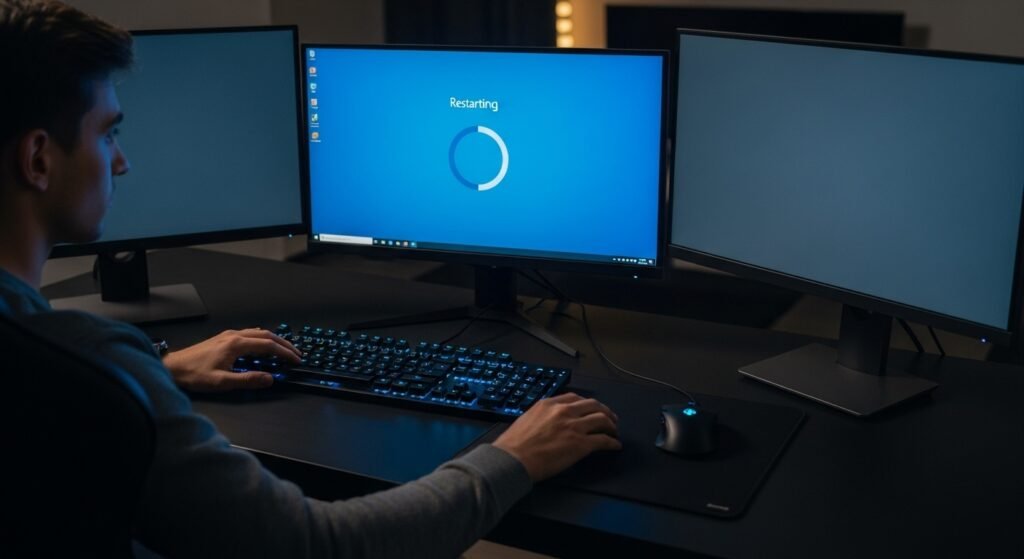
A full system restart clears temporary driver conflicts and stalled background services. After reboot, keyboard response during login offers early signals. Missed keystrokes during password entry point toward hardware issues. Normal response during login but failure inside games suggests software or settings conflicts tied with Windows or game launchers.
Check Physical Debris Under Keys
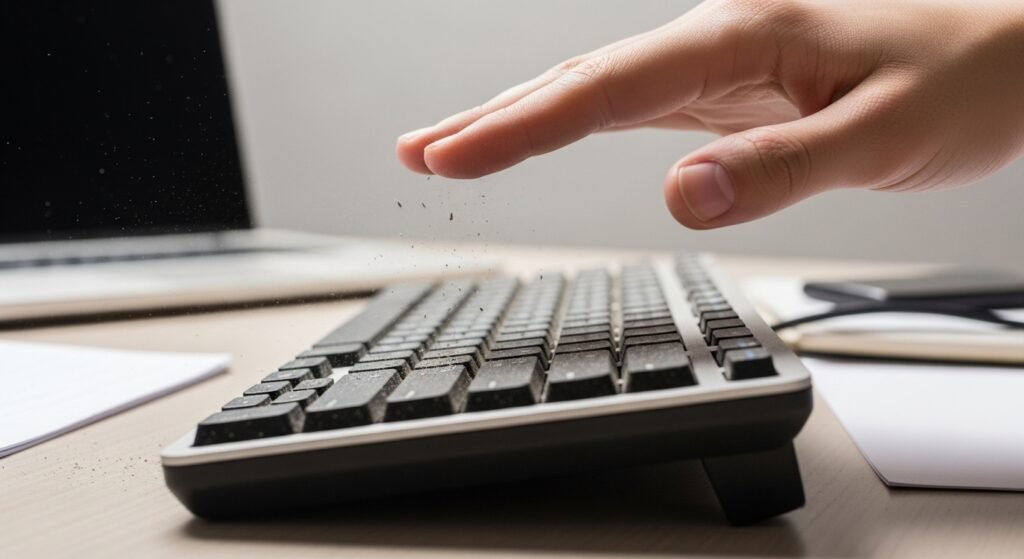
Dust, hair, and food particles block key travel. Mechanical and membrane keyboards both suffer from buildup. Turning the keyboard upside down and tapping lightly removes loose debris. Compressed air clears deeper particles. Gamers using WASD or spacebar face higher debris accumulation due to frequent use.
Test Keyboard Outside Games

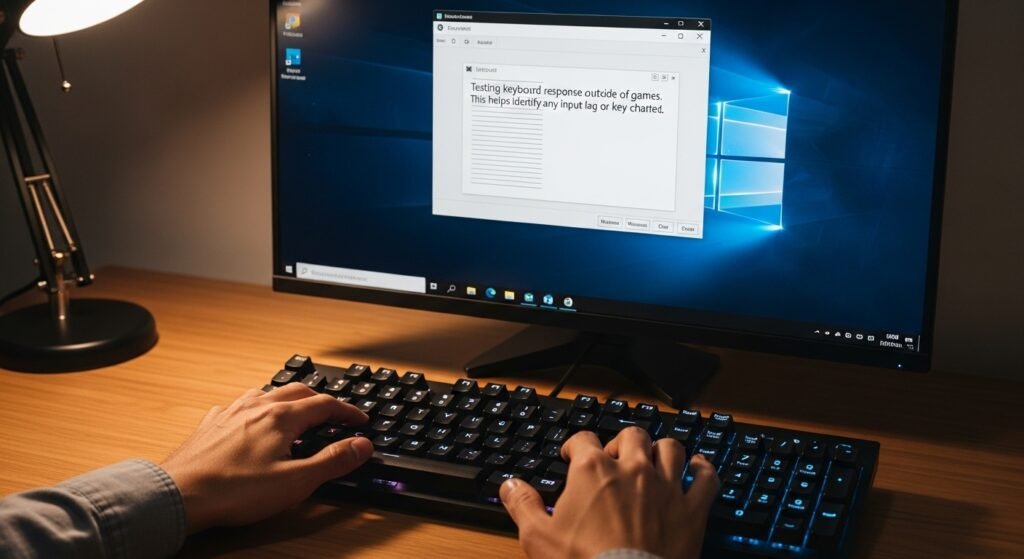
Typing inside Notepad or search bars isolates system level issues. If keys respond correctly outside games, focus shifts toward in game bindings or overlays. Failure across all applications indicates driver or hardware faults. This step narrows troubleshooting scope and saves time during diagnosis.
Disable Filter Keys in Windows Settings
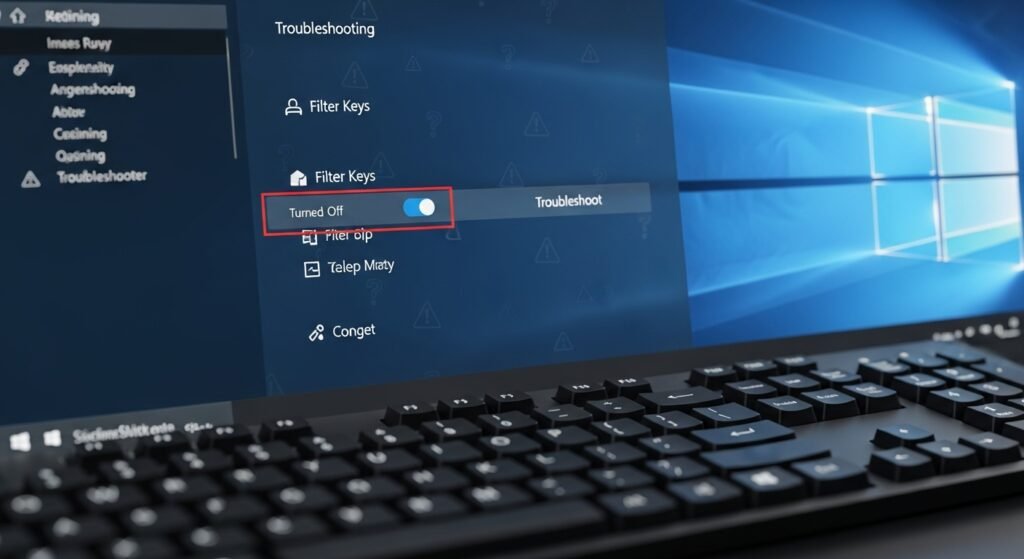
Filter Keys delay or ignore brief keystrokes. Windows sometimes enables this feature after repeated Shift presses. Opening Accessibility settings and disabling Filter Keys restores normal response. Many fast paced games rely on rapid taps, making this setting harmful for gameplay accuracy.
Update or Reinstall Keyboard Drivers
Outdated or corrupted drivers block proper input mapping. Device Manager allows driver updates through Windows Update. Reinstalling removes faulty configurations. Gaming keyboards with companion software require fresh driver sync after major Windows updates to restore full key detection.
Check Keyboard Layout and Language Settings
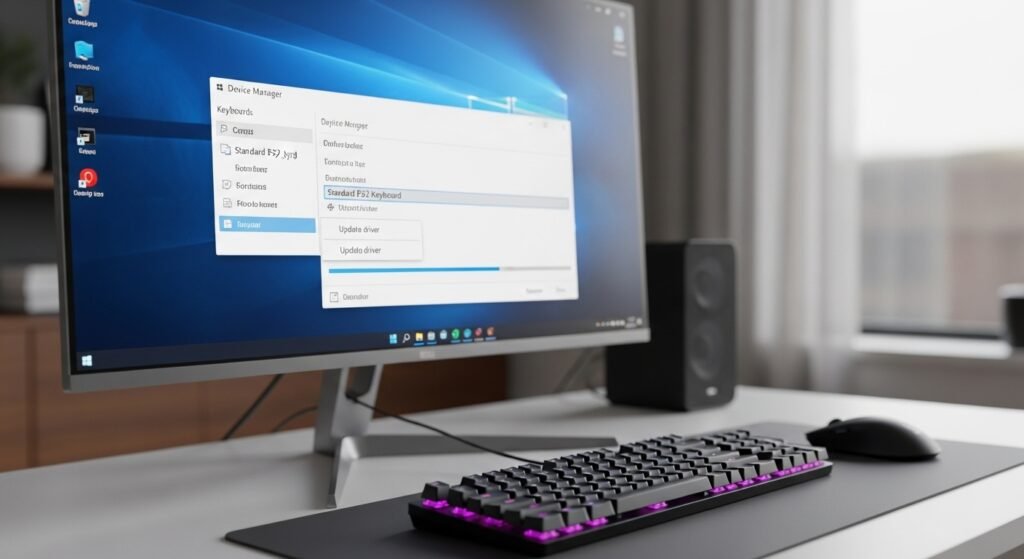
Wrong input language remaps keys unexpectedly. Windows supports multiple layouts, sometimes toggled by shortcuts during gameplay. Reviewing language settings ensures correct layout selection. Gamers using custom keybinds suffer confusion when layout mismatches alter command placement.
Inspect Game Key Bindings
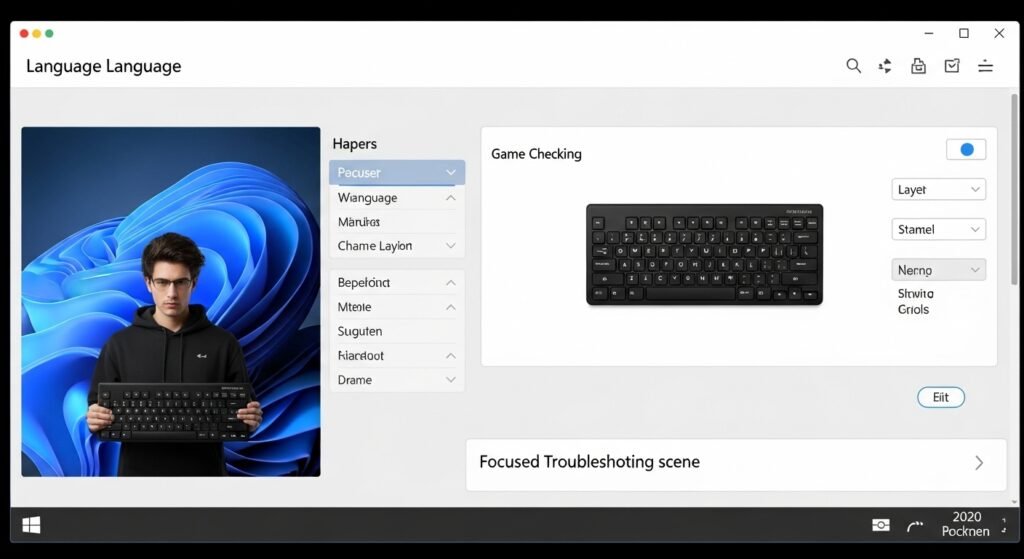
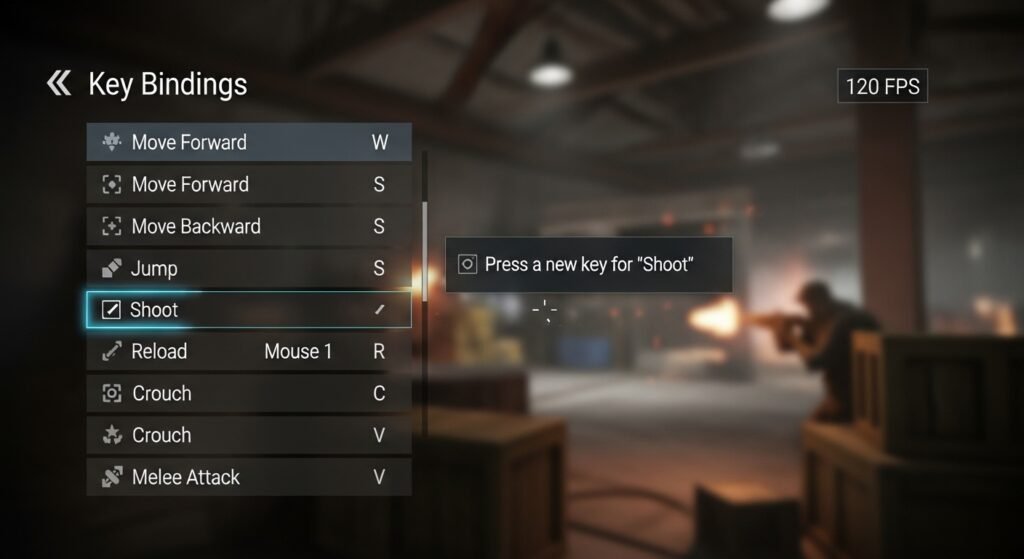
Games store key bindings separately from Windows. Updates or profile resets overwrite custom mappings. Opening control settings inside each game confirms correct bindings. Restoring defaults helps detect conflicts created by macros or external software tied with gaming keyboards.
Disable Background Overlays and Utilities
Overlay tools from screen recorders, voice chat apps, or RGB controllers intercept keystrokes. Closing such utilities during testing helps isolate interference. Competitive games often restrict overlays, making background tools a frequent cause of missing inputs.
Test With Another Keyboard
Using a spare keyboard confirms hardware failure. Consistent issues across devices indicate system settings problems. Smooth performance on a second keyboard points toward physical wear. Gaming sessions accelerate key fatigue, especially on commonly used movement keys.
Clean Windows Using Built In Troubleshooting
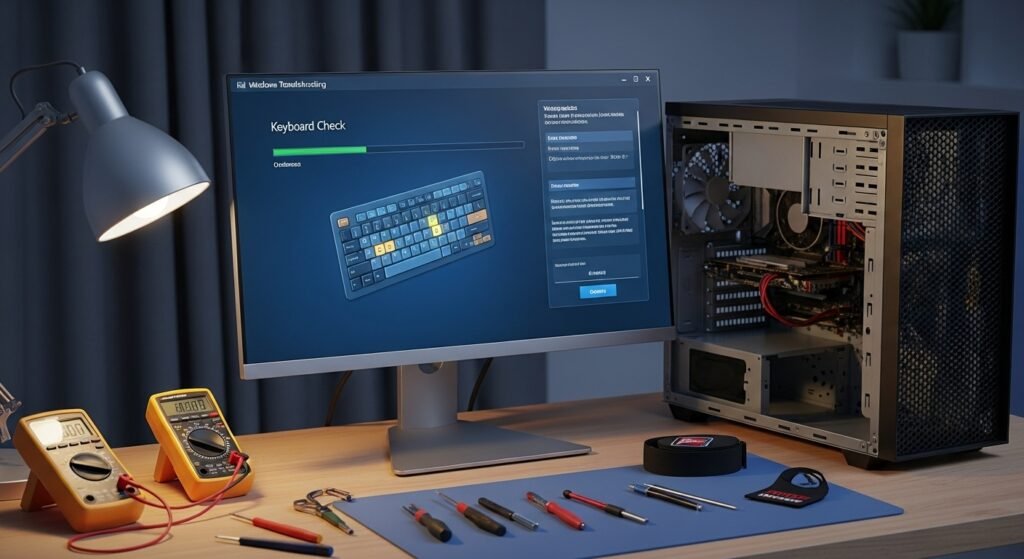
Windows includes basic keyboard troubleshooting options. Running system scans checks for corrupted files affecting input services. Keeping Windows updated reduces compatibility issues with modern games. Stable system files support reliable keyboard communication during extended gaming sessions.