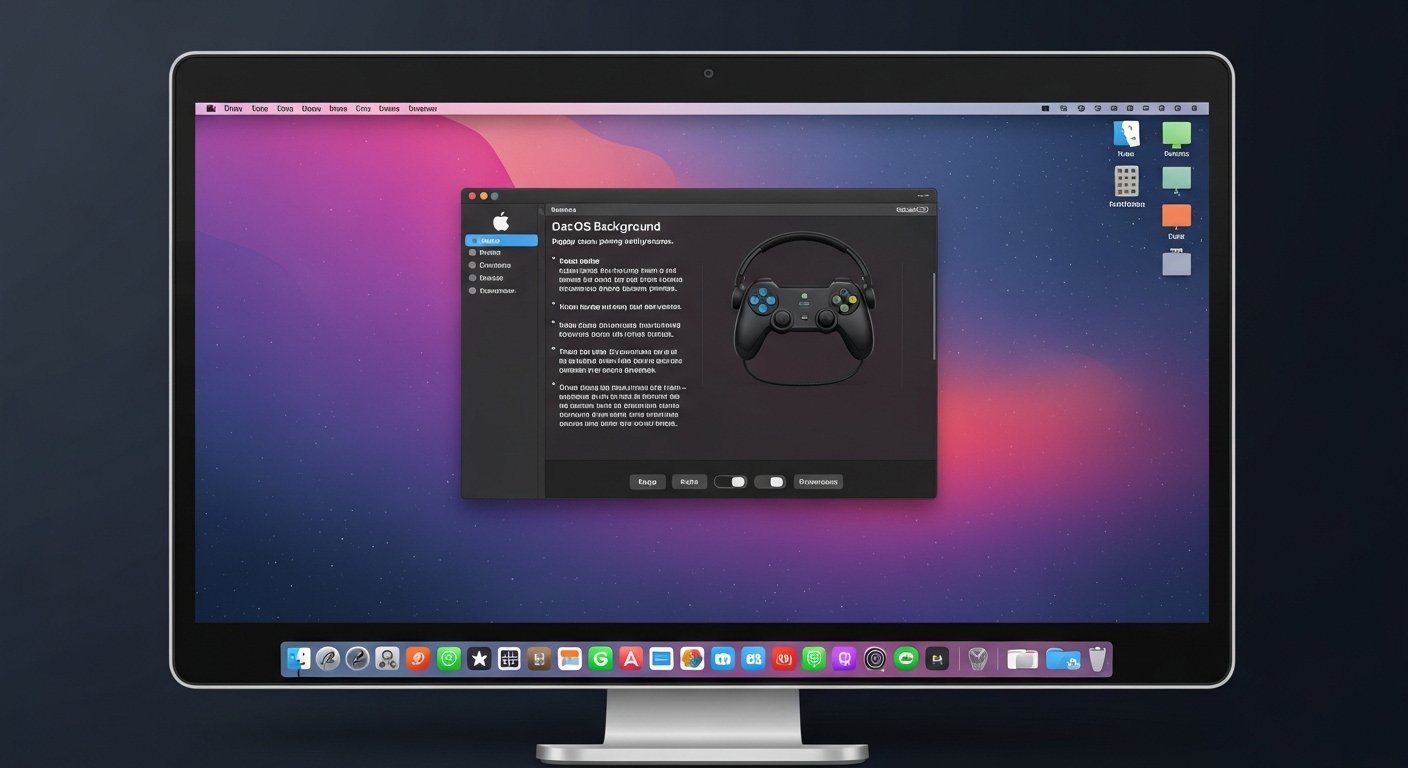
A consistent gaming environment supports focus during long sessions. Visual clutter on a desktop often distracts during gameplay preparation or streaming setup. macOS offers direct controls for wallpaper changes without external tools. A short process leads to a cleaner screen and stronger visual alignment with game themes. The following steps explain how a Mac desktop background fits gaming preferences, display quality, and performance goals through simple system settings.
Step 1. Access System Settings From the Apple Menu

System Settings sits inside the Apple menu on the top left corner. A user opens this panel before any display change. This location centralizes appearance controls and reduces time spent searching. Gamers often revisit this section for audio, display refresh rate, and wallpaper alignment.
Step 2. Open the Wallpaper Section for Display Control

The Wallpaper section appears within System Settings under Appearance or directly as Wallpaper on recent macOS versions. This panel displays current backgrounds and available categories. A gamer reviews built in options first since these images match macOS color calibration and screen resolution standards.
Step 3. Select a High Resolution Image for Gaming Screens
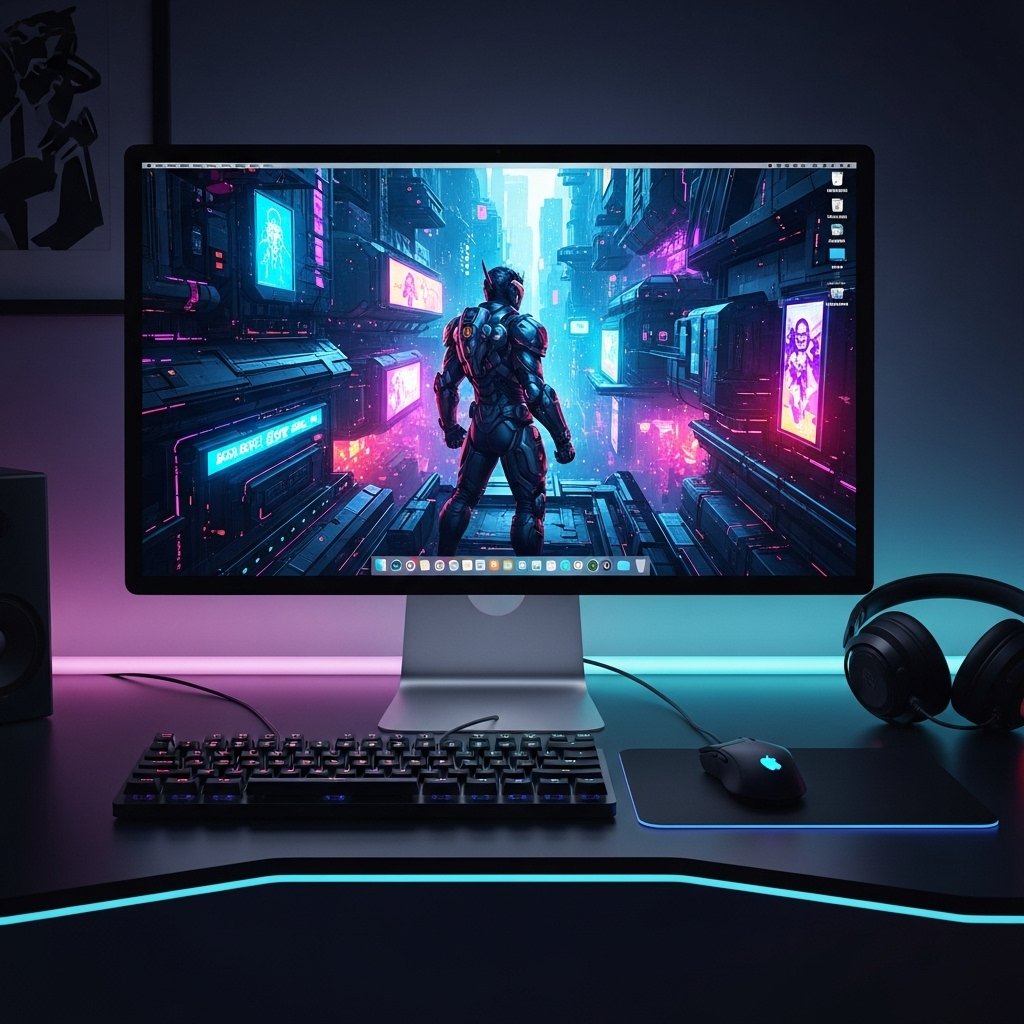
Gaming monitors favor sharp contrast and accurate color. A wallpaper image with resolution matching screen output prevents blur. For a 2560 by 1600 display, an image with equal or higher resolution maintains clarity. Many game studios release official artwork suitable for this purpose.
Step 4. Add Custom Game Art From Local Storage
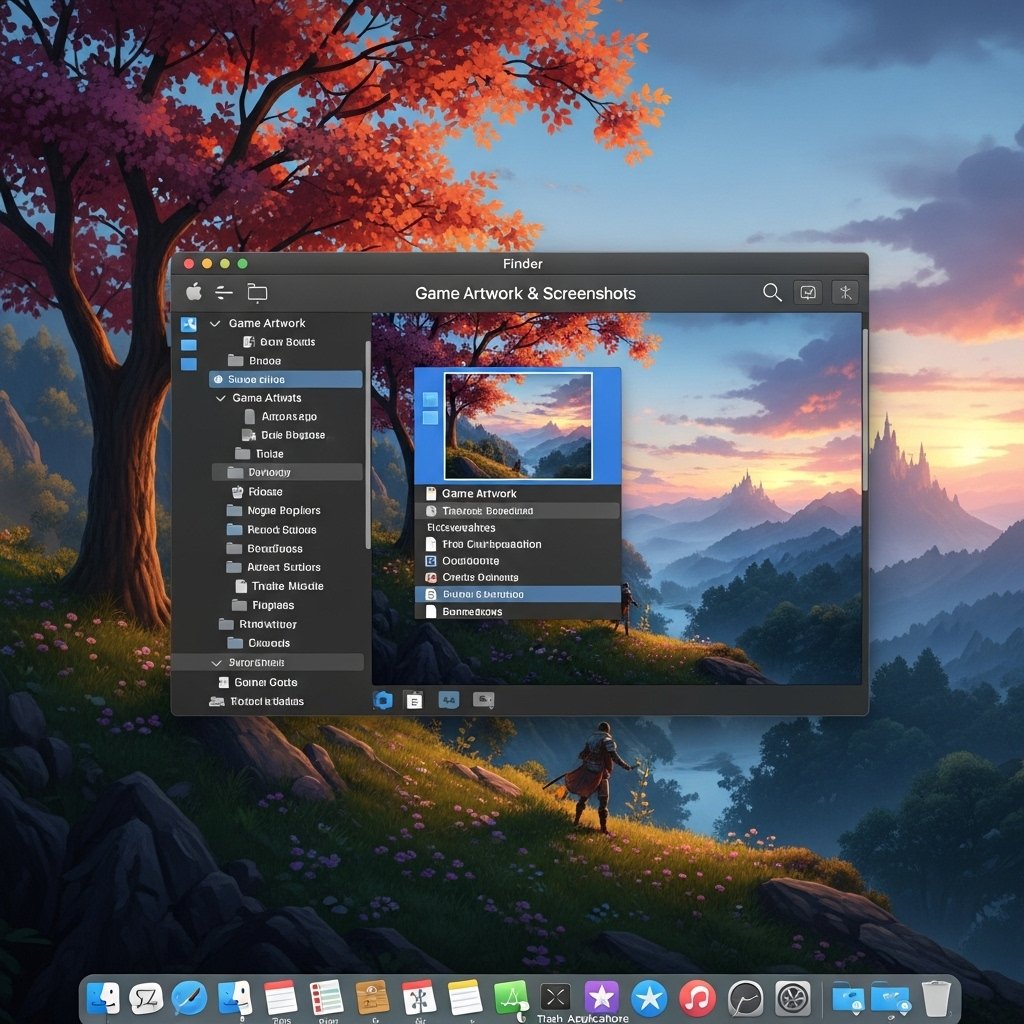
The Add Folder or Add Photo option allows selection of local images. Game screenshots, promotional art, or minimalist logos work well. Storing images in a dedicated folder keeps selection organized. This method supports rotation between multiple games without repeated file searches.
Step 5. Adjust Image Fit for Clean Desktop Layout

macOS provides fit options such as Fill Screen, Fit to Screen, and Stretch to Fill. For gaming setups with widgets or streaming tools, Fill Screen maintains balance. A centered layout avoids distortion and leaves space for desktop icons used during recording or launch sequences.
Step 6. Disable Dynamic Wallpapers to Reduce Distraction

Dynamic wallpapers change based on time or motion. Such movement distracts during competitive play or streaming preparation. Selecting a static image stabilizes visual focus. Many esports setups favor static backgrounds with muted tones to limit visual noise.
Step 7. Match Wallpaper Color With Game Genre

Color selection influences mood and concentration. Dark themes suit shooter or strategy titles due to reduced glare. Bright fantasy art aligns with role playing games. A consistent color palette across wallpaper and game UI supports faster visual adaptation during session switches.
Step 8. Optimize Desktop Icons for Streaming and Play
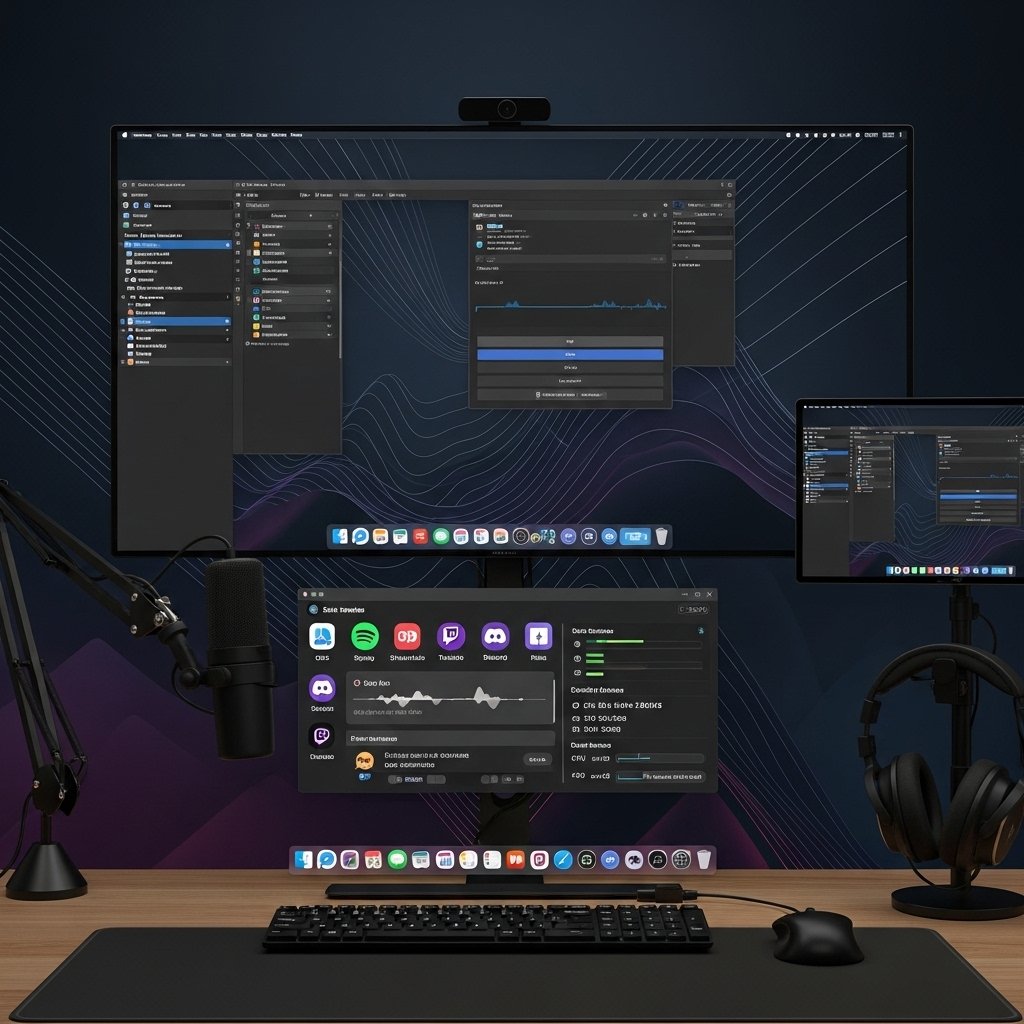
Wallpaper choice interacts with icon visibility. High contrast between icons and background improves quick access. A gamer adjusts icon size and placement after wallpaper selection. This step supports faster workflow when switching between launchers, voice tools, and recording software.
Step 9. Sync Wallpaper Across Multiple Displays
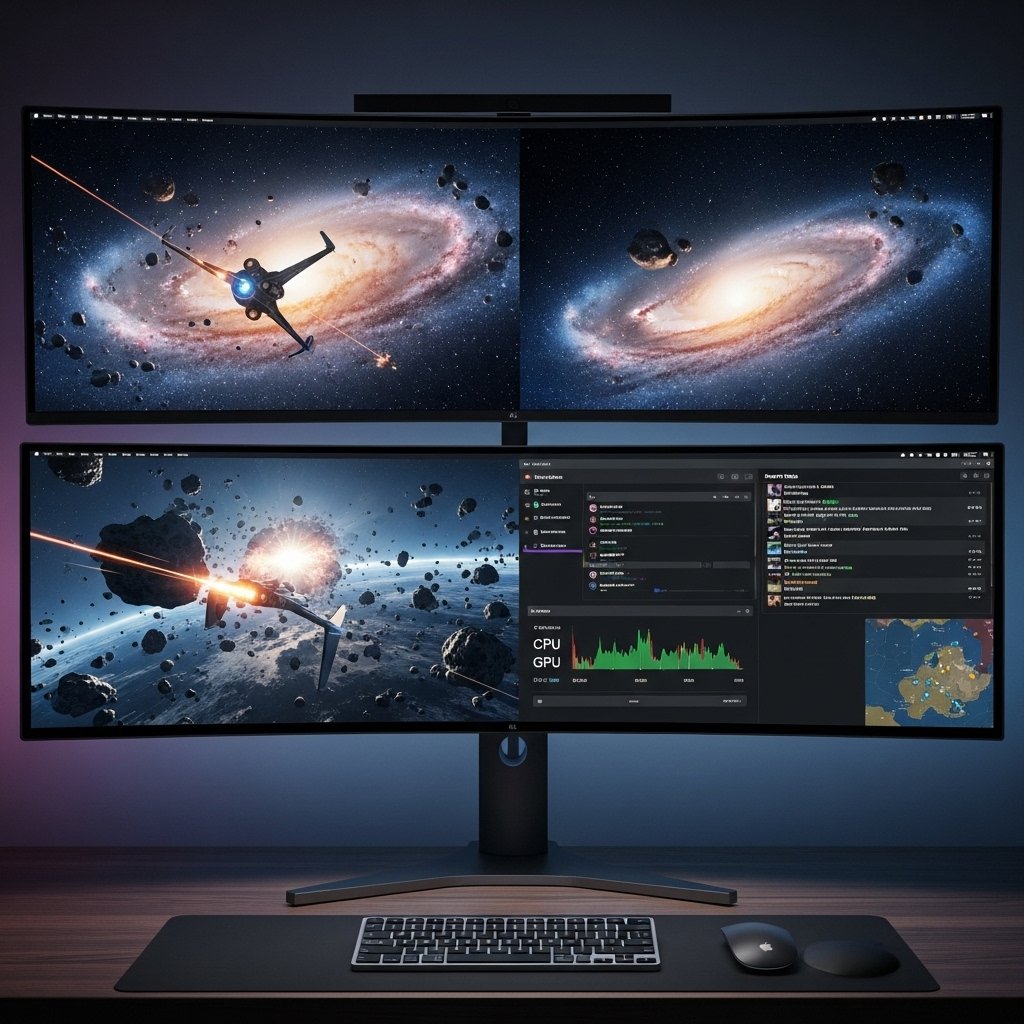
Many gaming desks use external monitors. macOS assigns separate wallpapers per display. Matching images across screens creates visual continuity. Different images per screen support task separation, such as chat on one screen and gameplay on another.
Step 10. Save Profiles for Different Gaming Sessions

Some users switch between work and gaming modes. Keeping wallpaper images in labeled folders supports fast changes. A competitive profile differs from a casual profile. This approach saves time before sessions and maintains visual consistency aligned with session goals.