
The performance of iPad when it is used to play games tends to deteriorate after weeks of continuous usage. Games files, browsers files, and background applications of the computer are stored as cache files and compete to access memory and storage resources. The accumulation causes dropped frames, a slow response to touch, and increased loading time. The cleanup of the cache creates balance by releasing the system resources. It does not need any technical expertise and can be included in regular maintenance of equipment. Periodic cleaning also helps in ensuring a smoother play, regular frame rate and predictable response to the long gaming sessions.
Why cache buildup affects gaming performance

Cache is a temporary storage of files. Games update assets, textures and patches over time. Elderly files will be still in the memory and will intrude into the memory allocation. The system wastes time sorting waste data when playing. Such a practice adds to the stutter and loading times, particularly in big open world or multiplayer games.
Check iPad storage before clearing cache
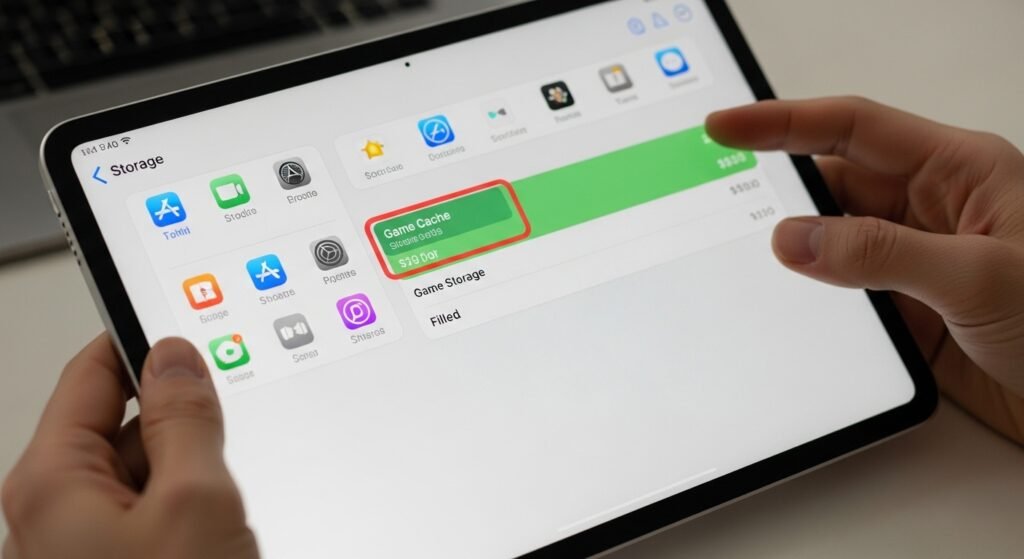
Storage review identifies which apps consume space. Open Settings, select General, then iPad Storage. Games with large cached data appear near the top. Storage review guides priority and prevents unnecessary removals. This step supports targeted cleanup and preserves progress files linked to game accounts.
Clear Safari cache for browser based games

Web based games rely on Safari data storage. Cached scripts and images accumulate after repeated sessions. Open Settings, select Safari, then Clear History and Website Data. This action removes temporary files and login tokens. Browser games load faster afterward and touch input latency drops during extended play.
Offload unused apps without deleting data

Offloading removes app binaries while preserving documents and progress. Open Settings, select General, then iPad Storage. Choose an unused game or app, then select Offload App. Storage frees instantly. Reinstall restores progress. This approach suits large games used occasionally.
Restart the device to flush temporary memory

System memory stores the temporary processes when the uptime is long. Restart removes volatile cache and reinvents background tasks. Turn the device off, allow ten seconds to pass then switch it on. Most of the users are recording higher frame pacing and a quicker app switching upon restarting the computer, particularly before intense gaming.
Update iPadOS for memory management improvements
System updates refine memory allocation and cache handling. Open Settings, select General, then Software Update. New versions often address performance issues affecting graphics and touch input. Updated systems manage cached data more efficiently during demanding games with high refresh rates.
Clear cache inside individual games

Some games include built in cache cleanup options. Open the game settings menu and look for storage or data tools. Texture packs and temporary downloads often appear there. Removing unused assets reduces load times and stabilizes frame rates during competitive play.
Reduce background app activity
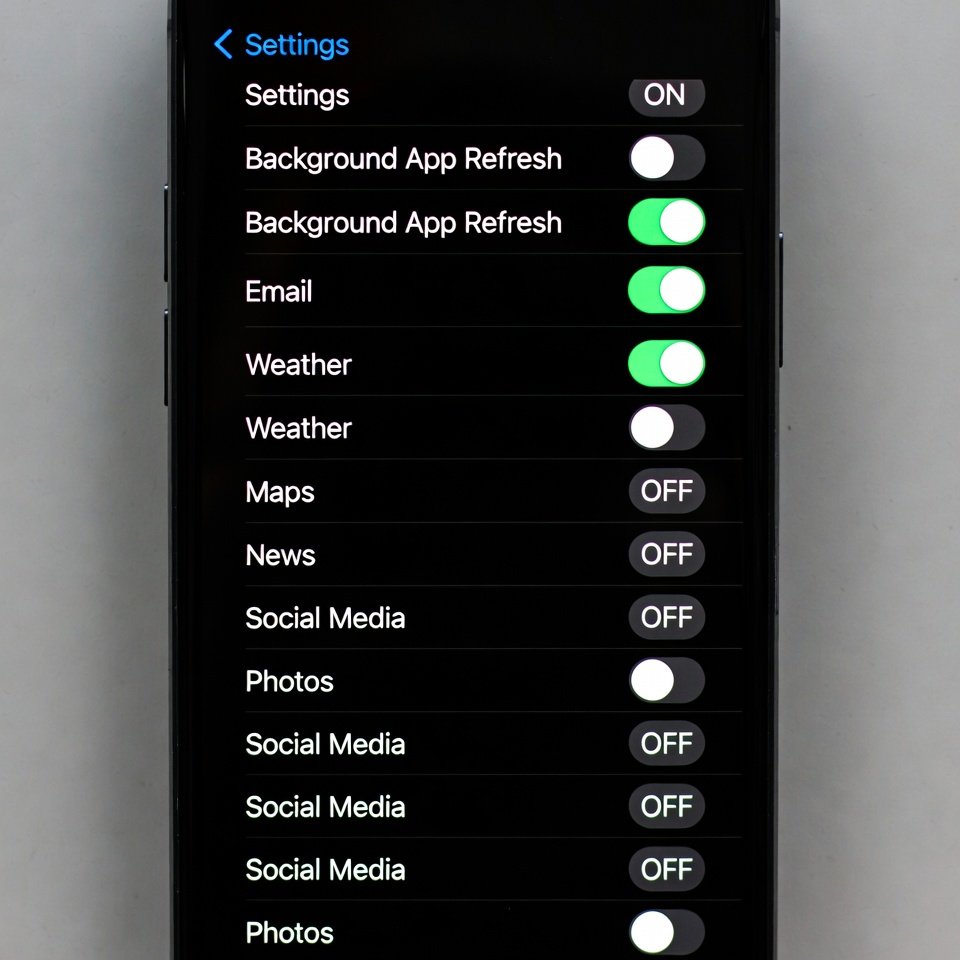
Background apps generate cache even during idle time. Close unused apps from the app switcher before gaming. Disable background refresh for non essential apps through Settings. Fewer background tasks mean more memory reserved for active games and faster response during combat or racing scenarios.
Free space to support smooth graphics rendering
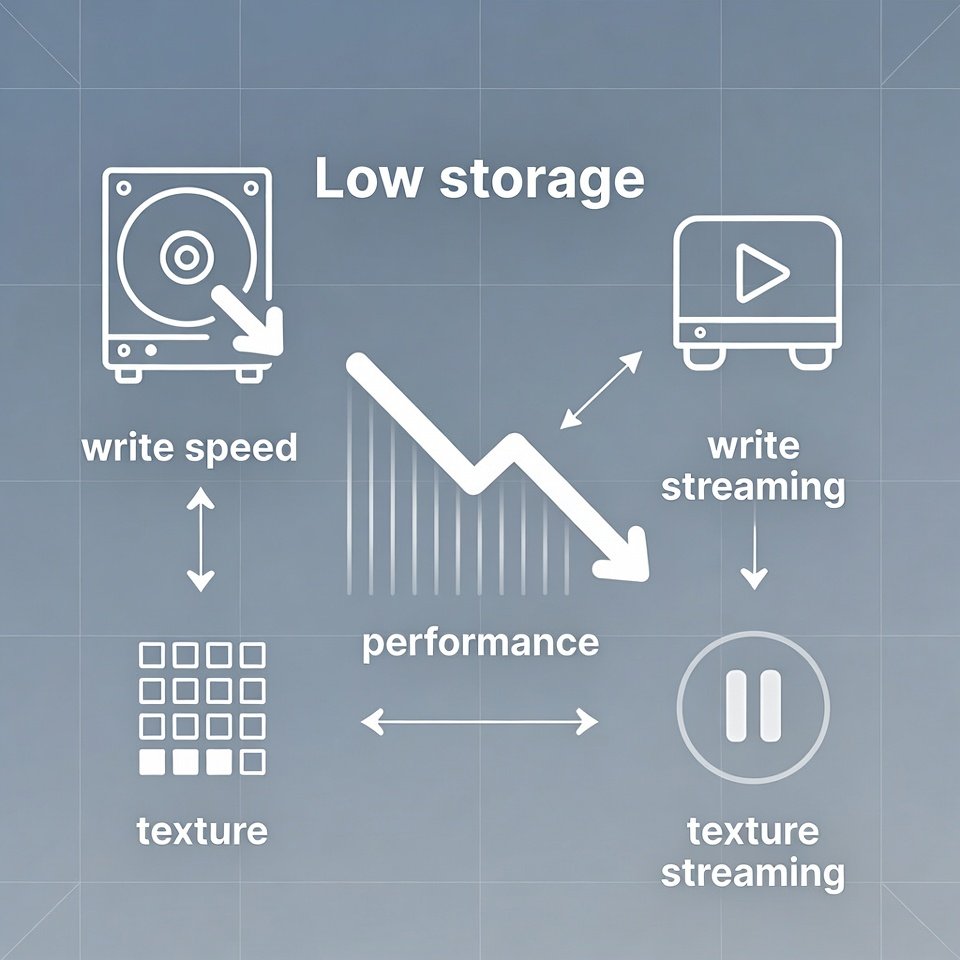
Low storage impacts write speed and texture streaming. Aim for at least five to ten gigabytes of free space. Delete unused media or old downloads. Adequate free space supports shader loading and prevents sudden pauses during high action scenes.
Set a regular cache maintenance routine
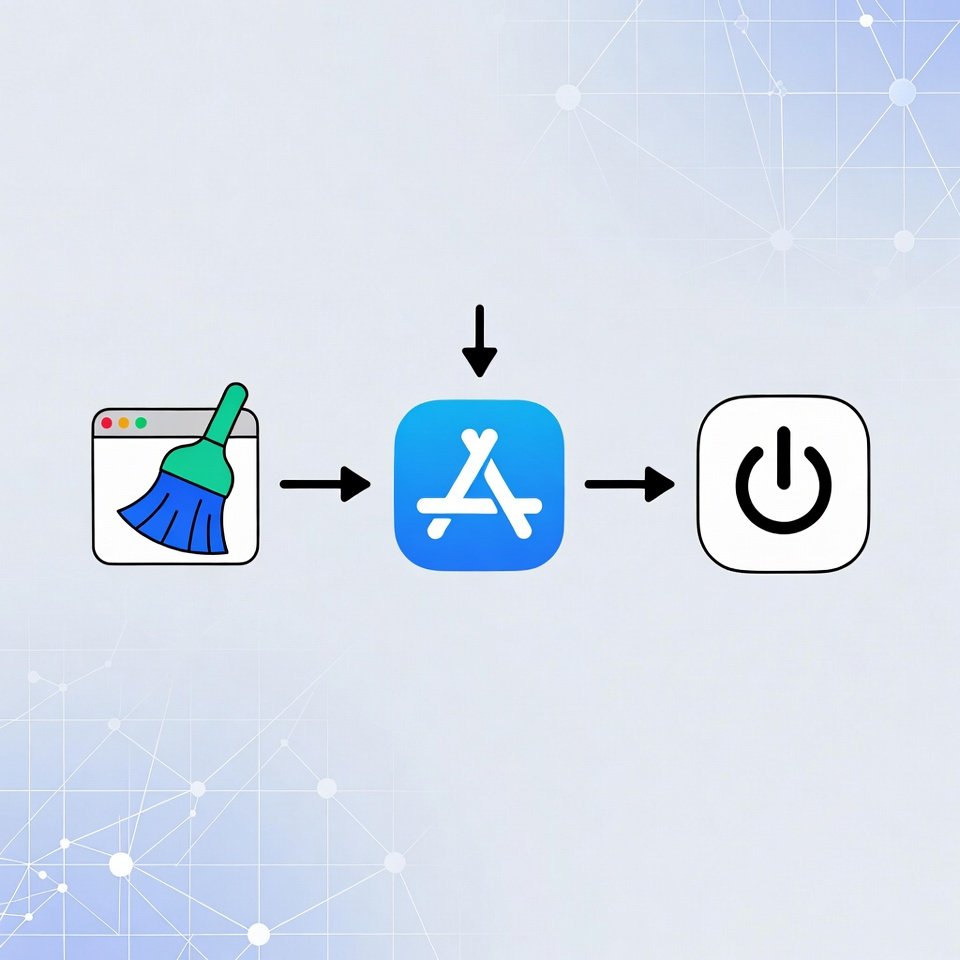
Weekly cache checks maintain consistent performance. Combine Safari cleanup, app offloading, and device restart. This routine takes less than five minutes. Regular maintenance prevents gradual slowdown and keeps competitive games responsive across long play sessions.