
Many PC gamers complain about limited SSD space after installing a few large titles. Modern games often exceed 80 GB, which creates pressure on storage planning. The problem rarely comes from drive size. The problem comes from poor data habits, weak folder discipline, and ignored system settings. A player who understands storage behavior gains faster load times, smoother updates, and fewer reinstall cycles. Efficient SSD management matters more than raw capacity for gaming performance.
Game Launchers Store Duplicate Data
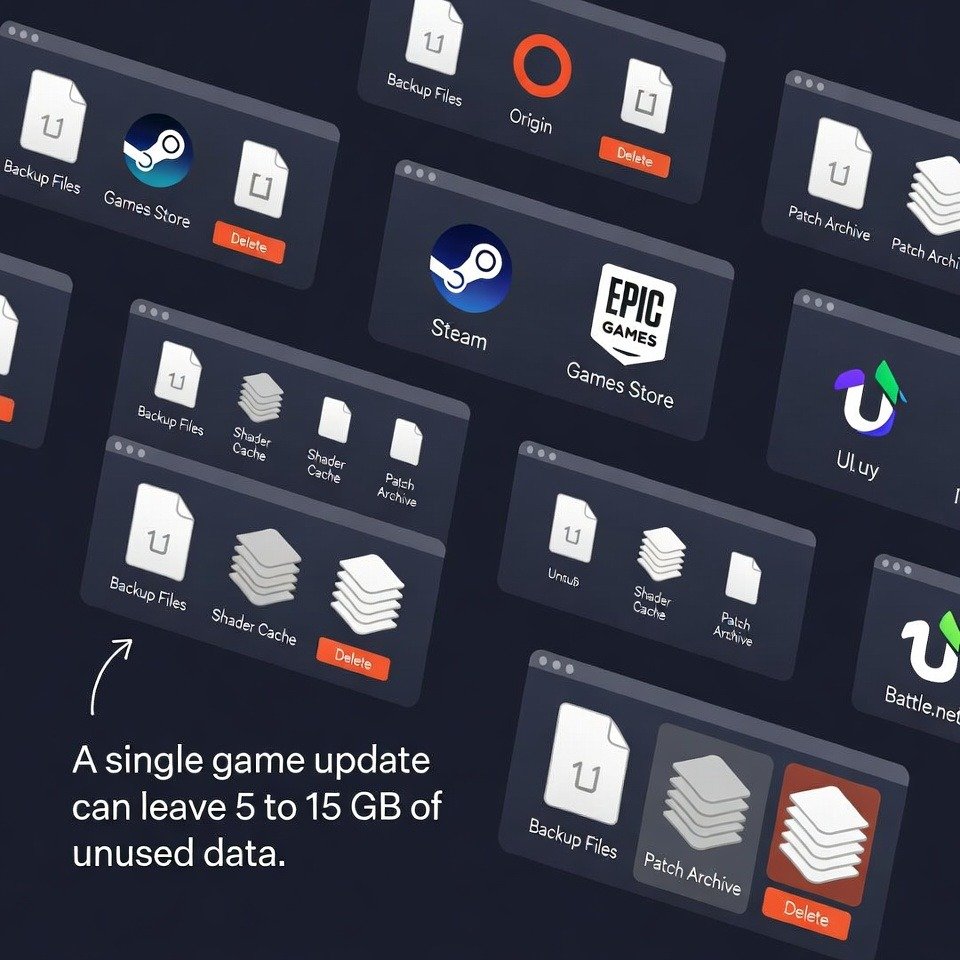
Game launchers download backup files, shader caches, and patch archives. Steam and Epic Games Store both keep temporary files after updates. A single game update often leaves behind 5 to 15 GB of unused data. Clearing download caches once per month frees meaningful space without removing installed games.
Shader Caches Grow Without Limits

Modern games compile shaders during play sessions. These files stay on the SSD across sessions. After several driver updates, older shader data loses value. Clearing GPU shader caches through driver tools or system folders often recovers 2 to 10 GB. Performance impact stays minimal after regeneration.
Saved Clips and Screenshots Pile Up

Many gamers record clips through built in tools. ShadowPlay and Xbox Game Bar store footage on the system drive by default. Short clips add up fast. A week of casual recording often crosses 20 GB. Moving capture folders to a secondary drive preserves SSD space without losing content.
System Restore Consumes Silent Space
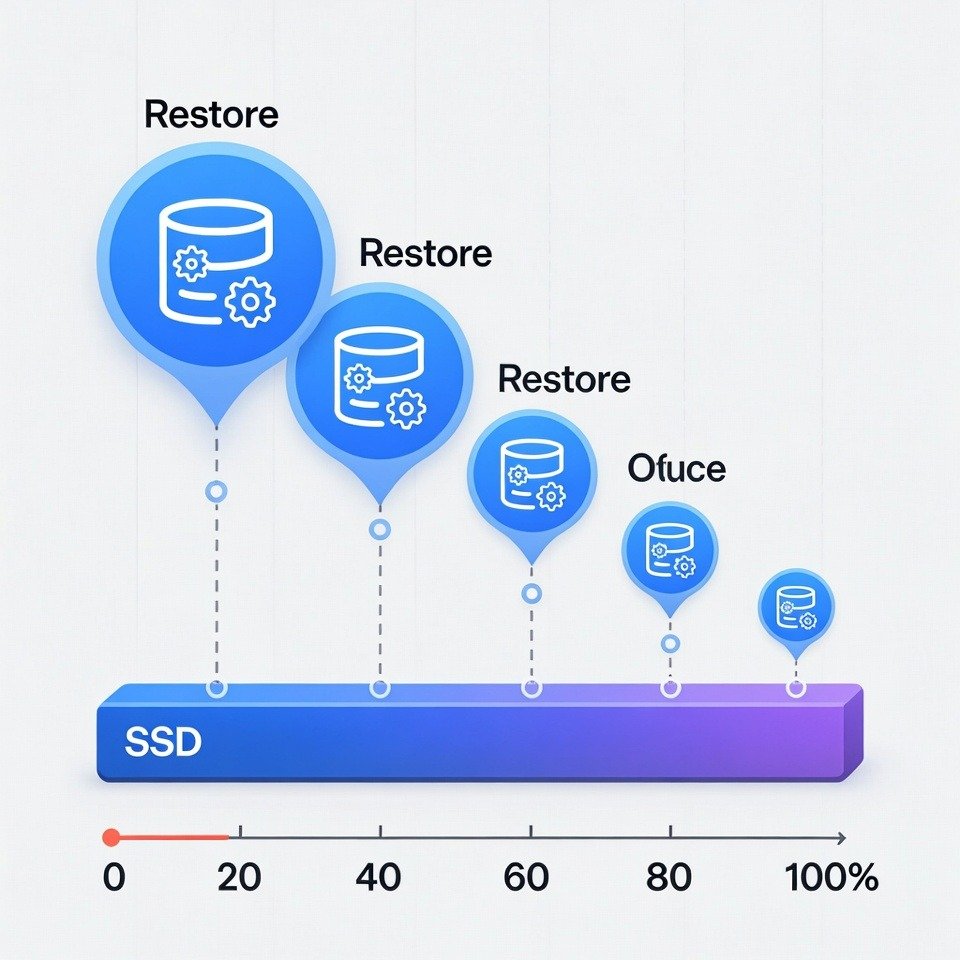
Windows creates restore points automatically. Each restore snapshot stores system data on the SSD. Over time these points claim several gigabytes. Reducing restore allocation to five percent limits storage loss while keeping rollback safety. This change benefits systems used mainly for gaming.
Game Mods Multiply File Counts

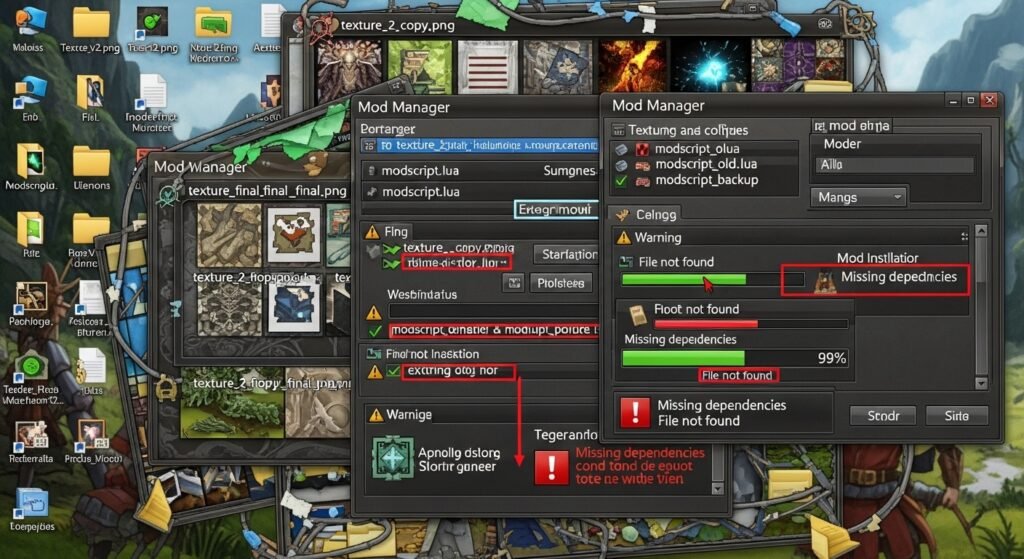
Mods create duplicate textures, scripts, and assets. Some mod managers keep compressed archives after installation. A heavily modded title often doubles storage usage. Removing unused mods and deleting leftover archives restores space. Reviewing mod folders once per month prevents uncontrolled growth.
Downloads Folder Becomes a Storage Trap
Game installers, driver packages, and patches often remain inside the Downloads folder. Many files exceed one gigabyte each. Sorting by size reveals forgotten files quickly. Deleting old installers offers immediate gains with no impact on gameplay or system stability.
Hibernation Files Reserve Fixed Space

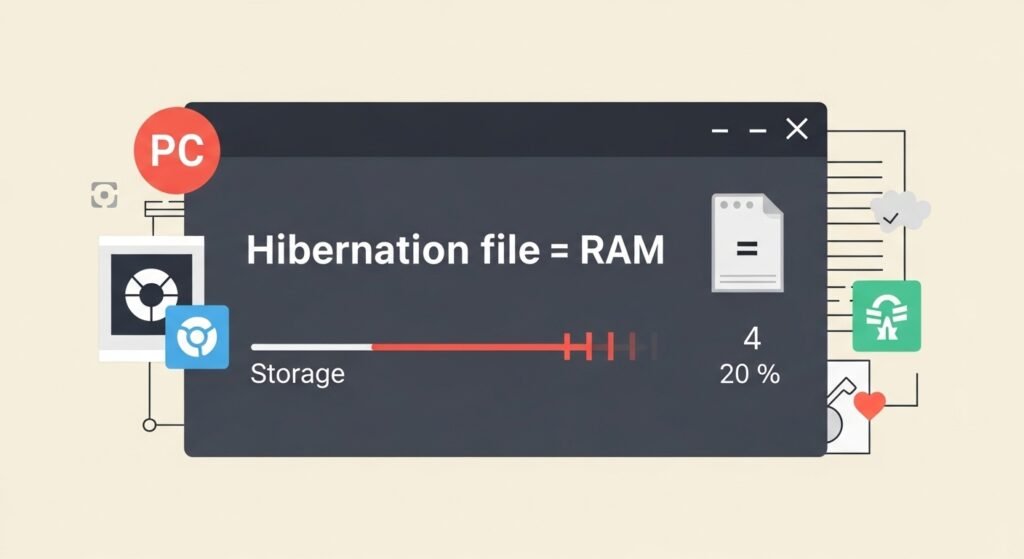
Windows hibernation reserves storage equal to installed RAM. A system with 16 GB RAM loses 16 GB of SSD space. Gamers who never use hibernate benefit from disabling the feature. Sleep mode still functions normally after this change.
Page File Allocation Exceeds Needs
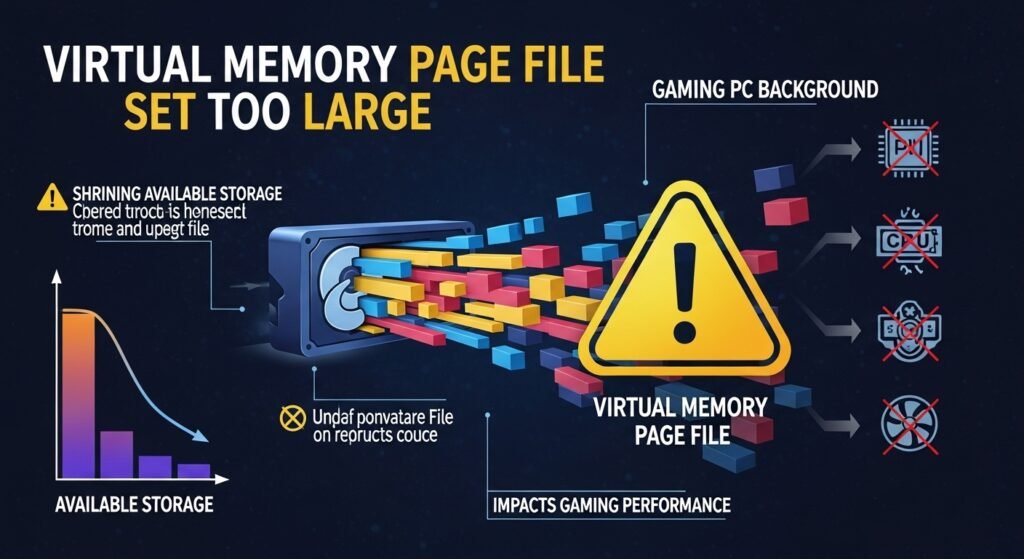
Windows assigns large page files by default. Gaming systems with high RAM rarely need massive swap space. Manually setting page file size to four or eight gigabytes balances stability and storage efficiency. This adjustment frees several gigabytes instantly.
Game Save Backups Multiply Over Time
Cloud sync tools store multiple save versions locally. Some games generate frequent autosaves. These files stay small individually but grow over months. Clearing old save backups reclaims space without risking progress when cloud sync remains active.
Poor Drive Partition Planning Hurts Capacity

Many systems place Windows, games, and personal files on one partition. This structure accelerates clutter. Separating the operating system from games improves organization and cleanup efficiency. Even without new hardware, partition planning changes storage behavior for the better.