
What sets Gmail apart isn’t only sending or getting mail – it’s the clever extras built right in. Instead of just delivering messages, tools like predictive replies help shape your words faster. Security settings tighten who sees what without extra hassle. Some functions stay buried until you click deep enough. Others shift how you sort through cluttered inboxes on the spot. Here are seven such tools wait behind ordinary buttons, waiting to smooth out daily workflow.
Use ‘Help Me Write’ for Quick Email Drafts

Start typing your message. Gmail now builds a full draft when you enter just enough to explain what you need. Find the button: look below the write area, where a starred pencil lives. That spot opens the quick writer. Test it in Workspace Labs if you haven’t seen it yet.
Take Advantage of Smart Reply for Fast Responses
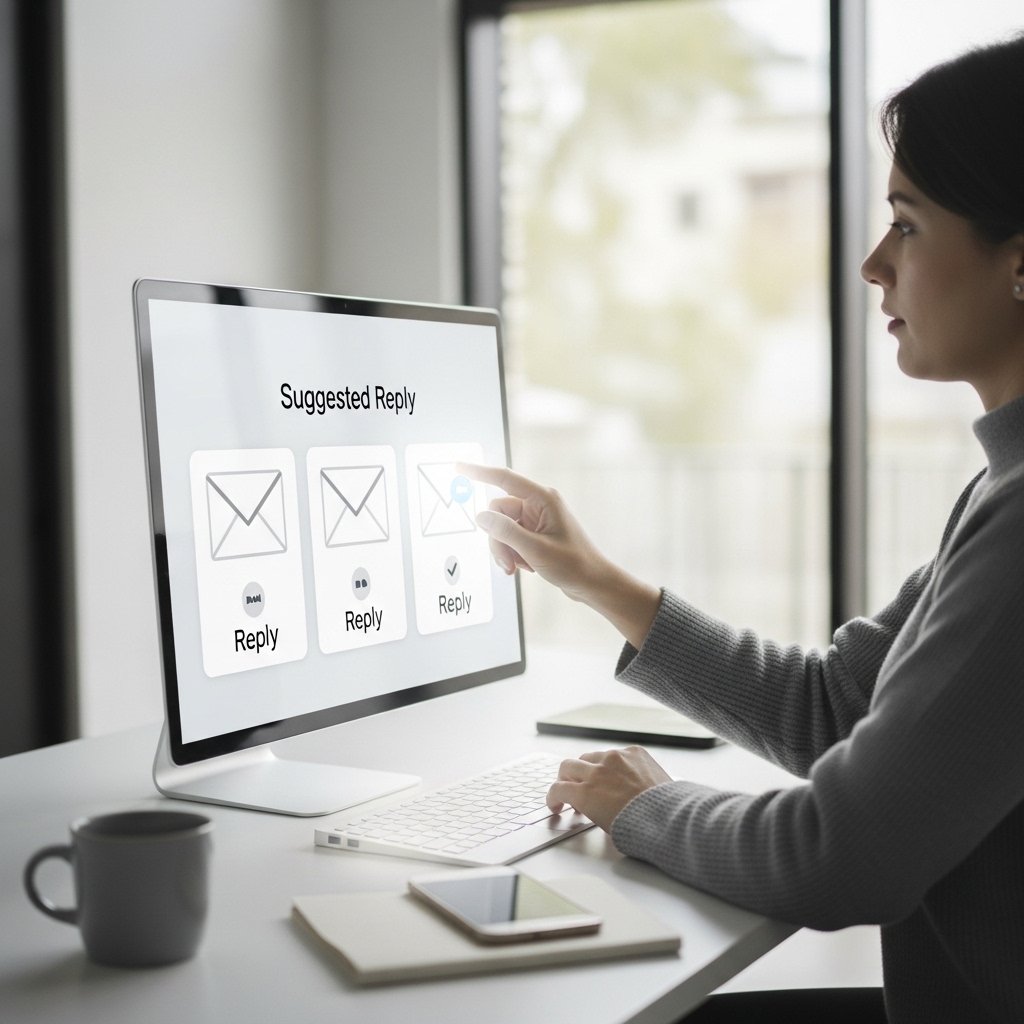
When time runs low, Smart Reply offers three clear choices built from what was written. Not just simple nods like before – these shift shape depending on who said it and why. You can turn it on inside Settings > General > Smart Reply, just in case someone needs that extra nudge.
Send on Schedule for Best Results
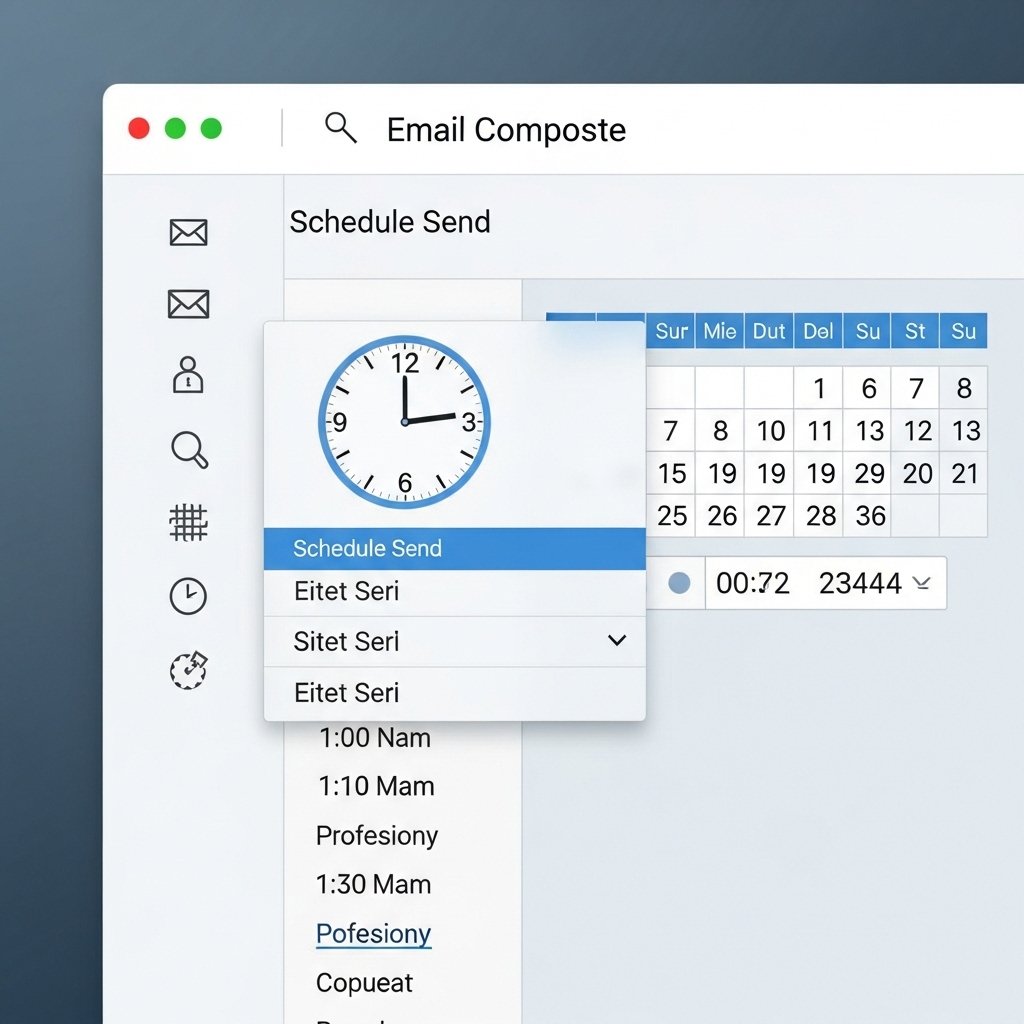
Send emails when it feels right by planning them first. Write your note, tap the green arrow below Send, select Schedule Send instead. That opens options to set exact dates and clock times – helpful if recipients live elsewhere or work specific hours.
Snooze Emails to Handle Them Later
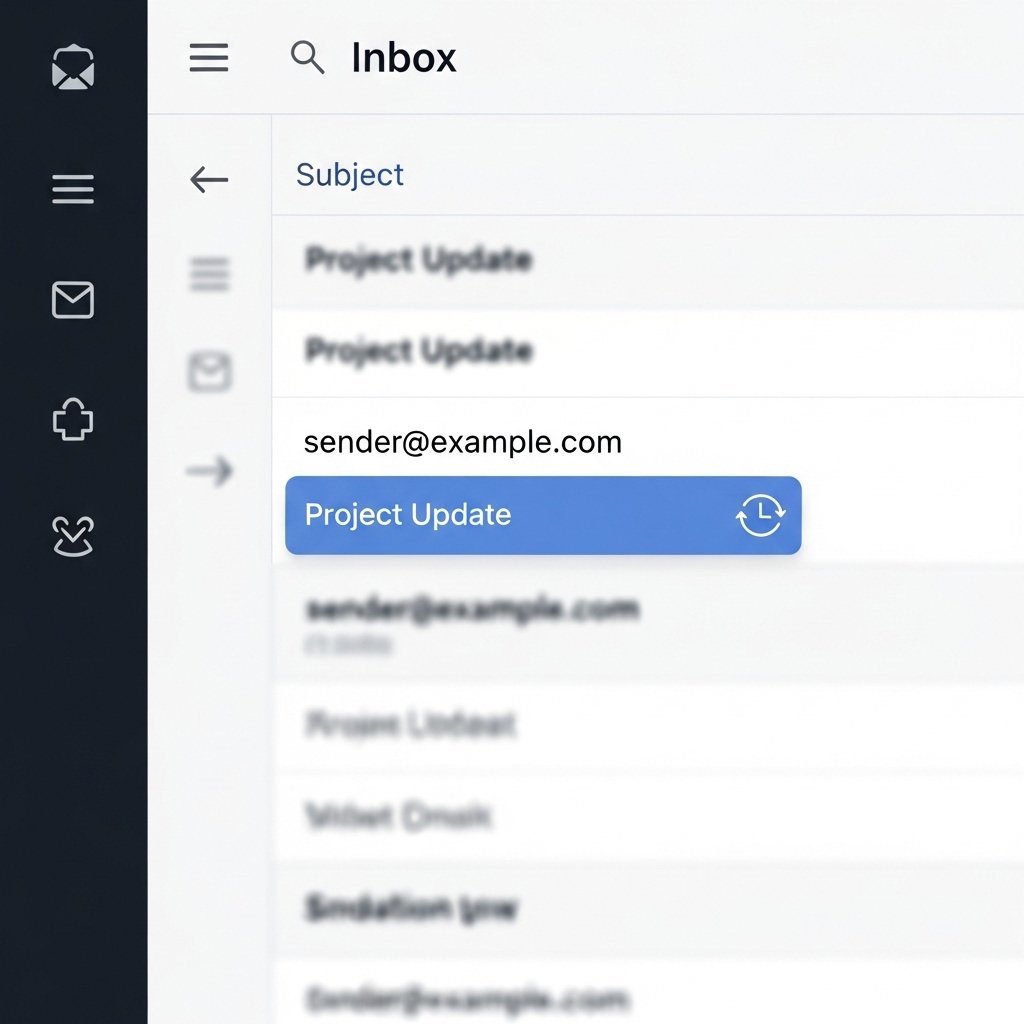
A message vanishes briefly from your inbox via the Snooze tool, only to return on specific days or hours. Find the small clock icon in the email options bar, select it, and pick a preset or custom time so nothing important gets buried or forgotten.
Let Nudging Remind You of Missed Emails
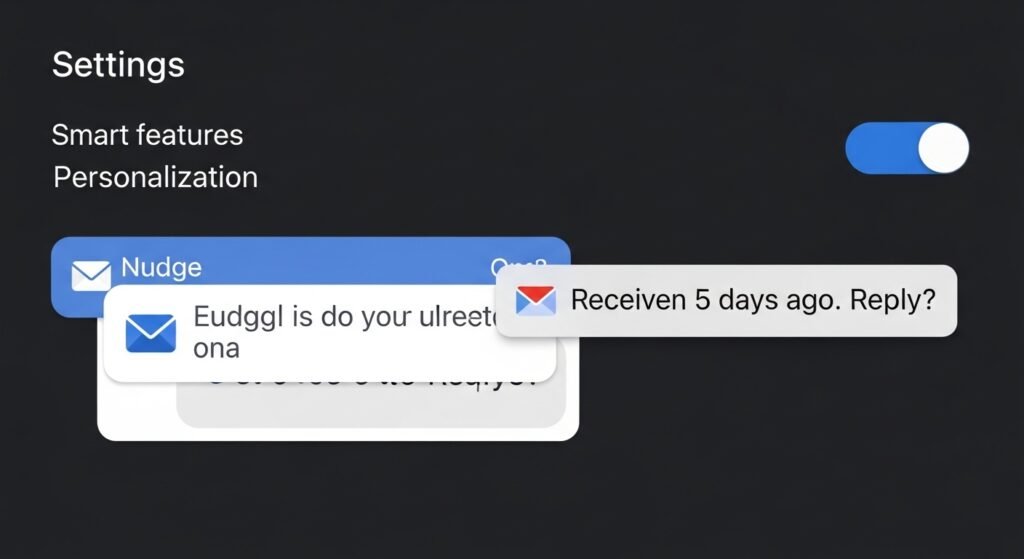
A nudge shows up when emails sit unread, pointing to ones that need attention. You might see “Received 5 days ago. Reply?” sliding in beside a message. Find the setting by going into Settings, then under Smart features and personalization – that part is nonnegotiable.
Send Sensitive Emails in Confidential Mode
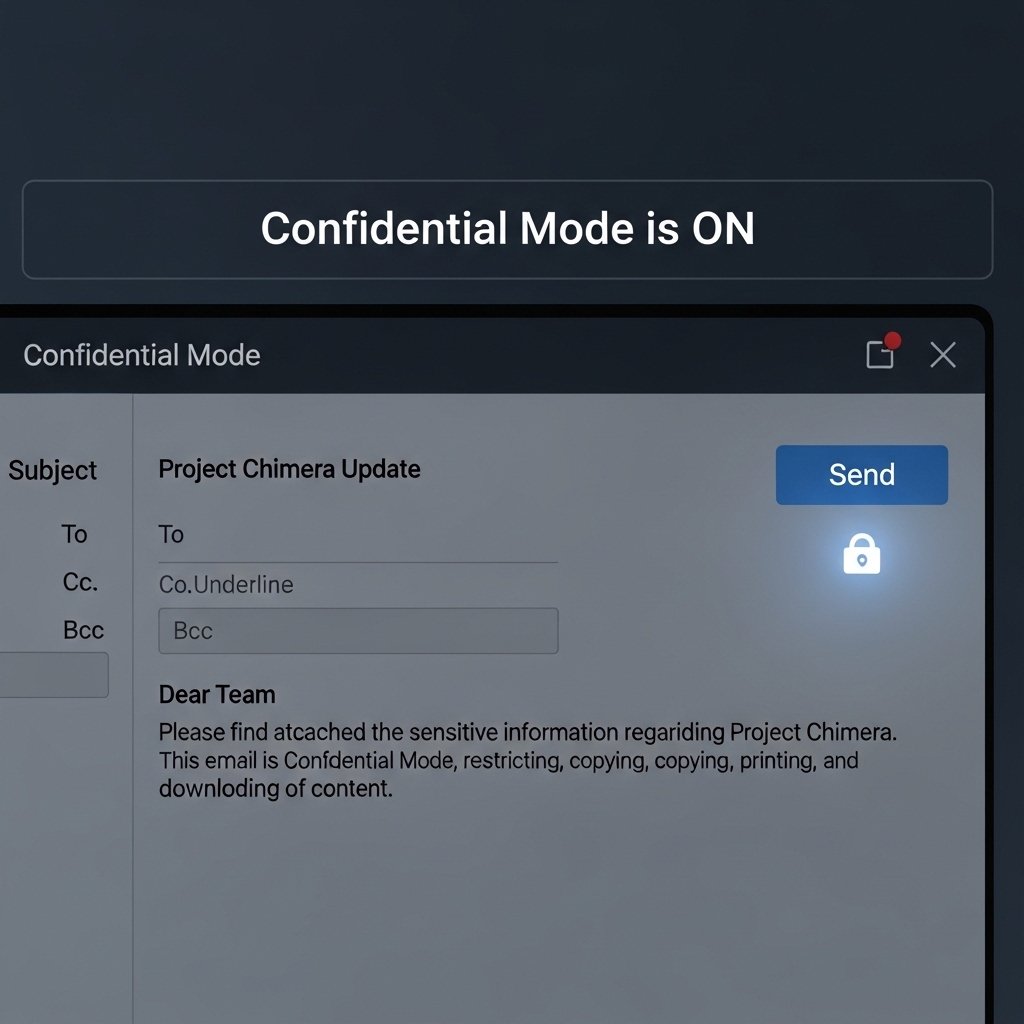
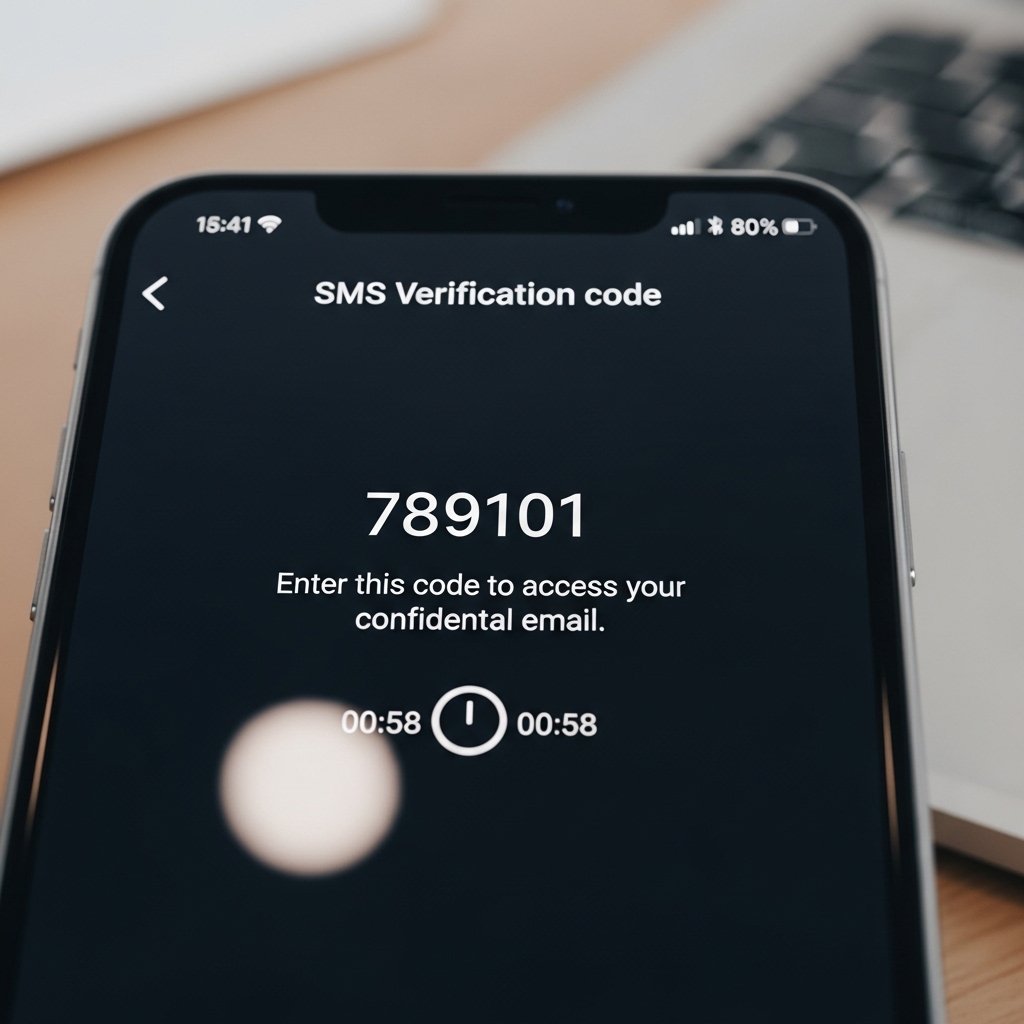
When handling private details, flip on Confidential Mode – this blocks sharing through copying, forwarding, printing, or download. Pick a date when it automatically deletes, plus throw in a bonus layer: set a code sent via SMS if needed. Find that switch down in the lower part of the message box’s toolbar.
Integrate Google Calendar with Gmail
When you write about a meeting, Gmail can toss that detail straight into your calendar without extra steps. Inside Google Calendar, look at the options – scroll down, pick something about emails turning into events, then flip the switch so those auto-made listings show up. That part turns incoming mail into scheduled items on the fly.